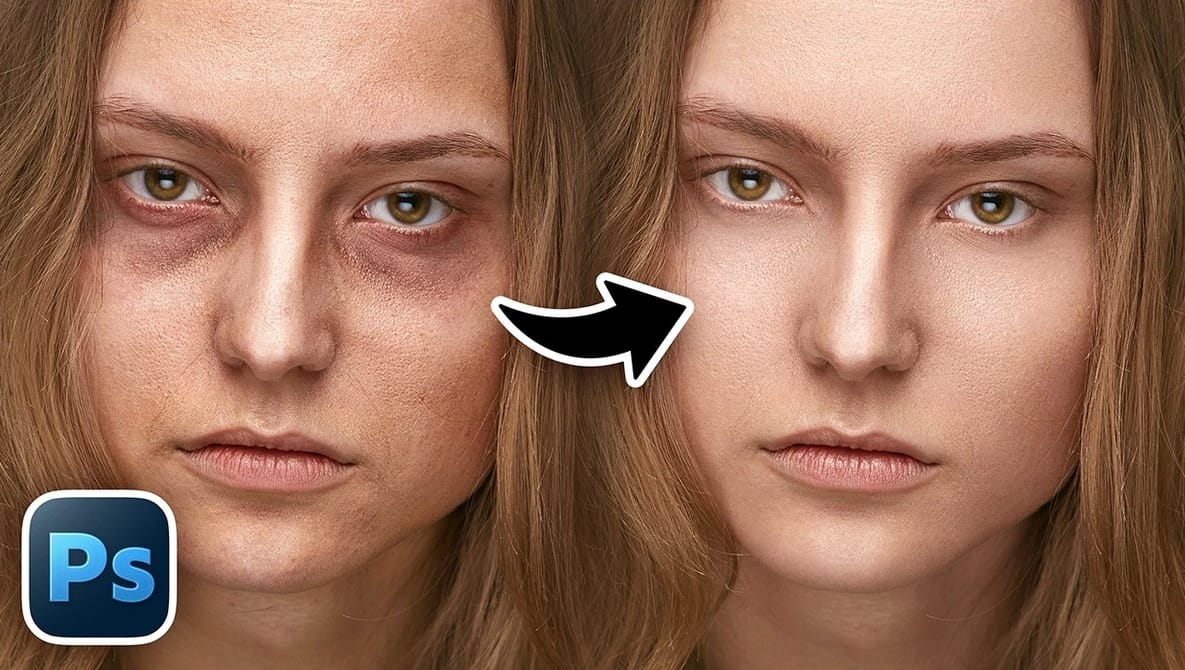
Dark under-eye bags can detract from an otherwise well-composed portrait. Many common editing techniques tend to create an unnatural, overly smooth appearance that is noticeable when viewed at full size.
This tutorial demonstrates how to reduce prominent under-eye bags in Photoshop while preserving the skin’s natural texture. The method ensures the final image looks realistic even at 100% zoom.
**Why this matters**
Maintaining a natural look in photo retouching is important for professional-quality results. Over-editing can make images appear artificial, which may distract viewers or reduce the subject’s authenticity. This technique helps photographers and editors enhance portraits subtly without compromising texture.
Source: NewsData